Wednesday, February 27, 2019

How to Fix iCloud Drive Not Syncing On Mac/PC

How to Fix iCloud Drive Not Syncing On Mac/PC

“iCloud drive work perfectly on iOS device (iPhone and iPad). Problem is on my Mac, it won’t sync on Mac. What am I doing wrong or am I attempting to use it in a way it wasn't intended for?”


iCloud drive enables users to save the files of all the devices. If your iCloud drive is not syncing with the Mac, you need to know how to fix these issues. With the iCloud drive syncing thoroughly, it gets easier to retrieve your content on all connected Apple devices. So, here in this article, we are going to offer you the different steps which when used will be able to solve the problem. It is important to have the iCloud sync working properly or else resuming your task on the other device might get terribly hard.


Tip 1. Check network connection on Mac/PC and iPhone


Tip 2. Check iCloud storage


Tip 3. Check Apple ID and iCloud Drive settings


Tip 4. Update Apple software more frequently


Tip 5. Use app specific password


Tip 6. A better backup and restore tool than iCloud
Tip 1. Check network connection on Mac/PC and iPhone


The very first thing which you need to do is check whether the internet connection is running on all devices. Check if the Wi-Fi is working properly. Turn it off, wait for 30 seconds and then turn it on again.


Tip 2. Check iCloud storage


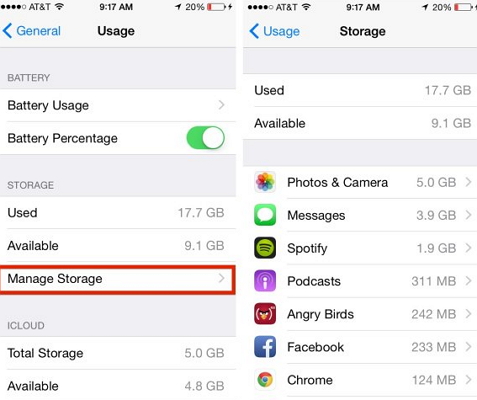
iCloud comes with specific storage plan. If there is no adequate space on your iCloud drive, the sync will not work. So, you need to check your iCloud storage by following these steps.


Head to ‘Settings’ and then on ‘Your name’. Now, move to ‘iCloud’ and then to ‘iCloud storage’. Now, tap on ‘Manage storage’ and see the free memory or free up more space.


Tip 3. Check Apple ID and iCloud Drive settings


It is important to check that on all your Apple devices you are signed using the same Apple ID. So, check these settings carefully.


On your phone which is running on iOS 11, head to ‘Settings’ and then to ‘Your name’. Now, tap on ‘iCloud’ and then scroll down and turn iCloud drive on.


On your windows PC, you need to open the desktop app and then move to iCloud. Now, check the iCloud settings and even your apple ID. Always check the box next to iCloud drive to turn it on.


On your Mac, you need to go to Apple menu and then move to System preferences. Now, tap on iCloud and then select iCloud drive.
Tip 4. Update Apple software more frequentlySponsor ads:Windows 10 Go Back to An Earlier Build Missing after 10 Days


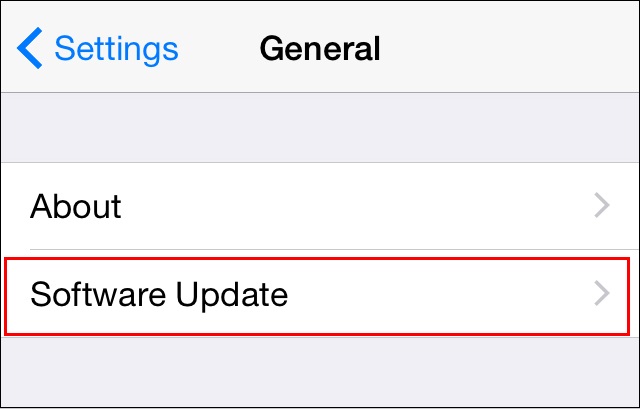
Apple rolls out new software updates from time to time. This is mainly done to fix the little bugs that may pop up from time to time. So, you need to check the ‘Settings’ to ensure that Apple software updates are checked daily and installed. Follow these steps.


Head to Apple software updates and then tap on ‘Edit’. Now select ‘Preferences’ and then change the updates from weekly to daily.


Tip 5. Use app specific password


Apple itself recommends that rather than using your Apple password for all app logins, you should have app specific password. By having a specific app password, you can use it to sync the content without any issue. Always use a two step authentication process.


Sponsor ads:Apps To Brighten & Enhance Videos Taken on iPhone Also Read:Fix and Repair Old Photos?


Tip 6. A better backup and restore tool than iCloud


If all of the above steps still fail to have the right impact, you need to get hold of a professional tool that is known to be one of the best software which offers better backup and restore facility as compared to the iCloud.


Sponsor ads:


Gihosoft Free iPhone Data Recovery:https://www.gihosoft.com/iphone-data-recovery-free.html


Gihosoft iPhone Data Recovery Free


Free iPhone Data Recovery Software for Windows/Mac


Recover up to 12+ types of files, including contacts, SMS, photos, WhatsApp, Viber, notes, etc.


Restore lost data from iOS devices directly or from iTunes and iCloud backup


Recover iPhone data lost due to iOS upgrade/jailbreak, accidental deletion, device lost or broken


Support all the latest iPhone, iPad and iPod Touch


Both Free and Pro version.


If you lost data after you updated to a new iPhone, you can always use Gihosoft iPhone Data Recovery to get the data back from the old iPhone or backup.You may also like: iphonerecovery.com


If you use android phones, please choose Gihosoft Android Data Recovery.


With Gihosoft Android Data Recovery, no longer afraid of data loss!


Must read:Youtube video downloader for pc


Gihosoft RePicvid Free Photo Recovery Software provides a free photo recovery software for windows to help users recover the deleted or lost photo for free.


Jihosoft Android Data Recovery: the best Android Data Recovery software for Windows and Mac to recover deleted contacts, messages, photos, videos, WhatsApp and etc from Android devices.Tips:How to transfer messages from iPhone to iPhone


jihosoft Free iPhone Data Recovery

Monday, July 30, 2018

Fix iPad Black Screen of Death (iOS 12 Included)


Fix iPad Black Screen of Death (iOS 12 Included)

Restore iPad to Factory Settings Using iTunes (Data Loss)

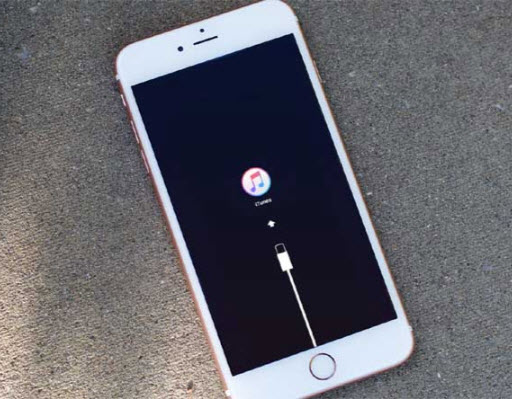
Here is the last method you can try by your own. It is restoring the iPad to factory settings using iTunes. We must however warn you that this will erase all the contents and settings on the iPad.

Step 1: Install the latest iTunes on your system. Start iTunes and establish a connection between your computer and iPad.

Step 2: Hold the power button and the home button until iTunes displays message that it detected the device and is now ready for restoration.

Step 3: Click OK button. From the right pane of the screen, choose "Restore iPad" option.

Step 4: Pressing the button will allow the iTunes to erase all the content from your iPad, including data and settings.

Step 5: After iTunes completes the installation process, your iPad restarts automatically. You have to set up the device and begin using it as a new gadget.


Note: Restoring iPad to factory settings will erase all all the contend on your iPad. Keep in mind to back up your iPad to computer or with iCloud, so that you can restore the backup to iPad without affecting the other data. If unfortunately, you are not able to backup your iPad anymore, we recommend that you check it at Apple store to see if the support team can get the data off when iPad screen goes black.Sponsor Ads:
Gihosoft Free iPhone Data Recovery is a professional iPhone Data Recovery software to get back all your lost text message, photo, video, call history, note, contact and more from iPhone/iPad/iPod Touch. It offers a full solution to recover your lost data in different tough situations. Besides recovering data directly from iPhone, iPad and iPod touch, it also allows you to recover data from iCloud and iTunes backup files.
iPhone backup unlocker:Recover iTunes Backup Password.
iPhone backup extractor free:The best iPhone Backup Extractor software to extract photos, text messages, contacts, voice memos, note, WhatsApp, Viber and etc from iPhone/iPad backup.


Tuesday, July 24, 2018

How to fix iPhone White Screen of Death?


 How to fix iPhone White Screen of Death?

Why iPhone Stuck on White Screen of Death

There are many reasons that can lead to iPhone stuck on white screen of death, including hardware issues, damage from frequent falls, improper iOS 12 update, a jailbreak that didn't work, software crash, and so on. However, three of the most common things that trigger the problem are explained below.
Most of the times, when an iOS firmware update fails, you are likely to get the trouble. Putting simply, if you update your iPhone to the new iOS such as iOS12, and the device doesn't get successfully update, your device might get stuck to white screen of death. Another thing that could trigger the white screen problem is a jailbreak failure. Besides, system failures or system crash could also be a common reason that causes iPhone white screen problem.
If we talk about the hardware, the white screen problem can be the result of loose connection of the cable which is responsible of connecting iPhone's motherboard to the computer. Also, a damaged USB cable and the breaking of motherboard after your phone is dropped can be the reason too.

1. Check If Screen Magnification Is On

First of all, make sure to check the screen magnification is not enabled. This feature lets the users zoom the screen to an extra level. And maybe you have super zoomed the screen and it is stopped on something white giving you a wrong idea of white screen of death.
Hence, to fix this, get your three fingers together and double tab on the screen with those fingers. The screen will be back to normal in case it is magnified. Now, disable the feature if you want to. Go to 'Settings' > 'General' > 'Accessibility' > 'Zoom' > 'Off'.If you lost videos from iOS Camerall Roll which are nowhere to download again, you can use Gihosoft iPhone Data Recovery to get back deleted videos from iOS device including iPhone, iPad and iPod Touch.
Jihosoft iPhone Backup Extractor Extract and recover all types of data from iPhone backup files, such as camera roll photos, videos, SMS, contacts, reminders, WhatsApp, and etc.
Gihosoft Android data recovery Free is a super awesome software specialized in Android file recovery. With this program, you are able to recover deleted photos, music, videos, messages, contacts, call logs, WhatsApp messages, Viber chat history and more from Samsung, Huawei, LG, HTC, Motorola, Google, Oneplus, Sony, Lenovo, ZTE and other Android devices directly. Meanwhile, this Android data recovery software is available for both Windows and Mac platforms.

turn off zoom

2. Hard Reset Your iPhone

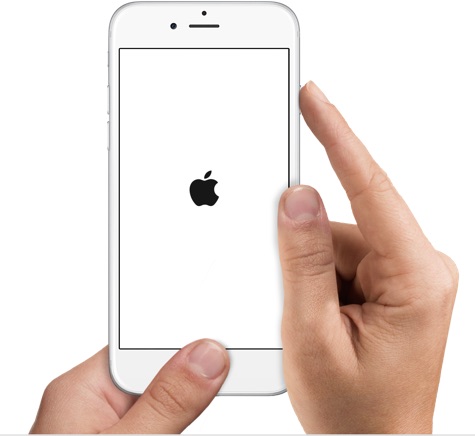
A hard reset can fix most issues. Try it before attempting any more invasive procedures. To do it, press the Home button (Volume Down button if you use iPhone 7) and the Sleep/Wake button at the same time for no less than 10 seconds or until you see the Apple Logo.
The iPhone will reboot automatically and begin to work normally again.
Hart Reset Your iPhone
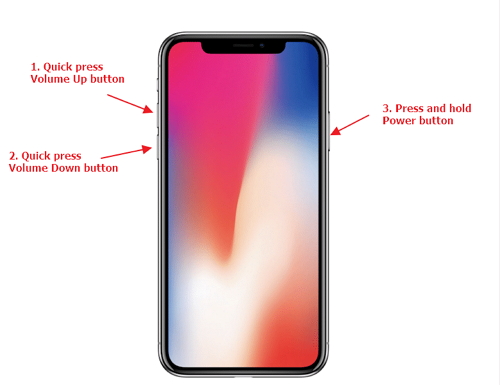
If you are using iPhone 8 or iPhone X, quick press the Volume Up and then Volume Down buttons. Then keep holding the side button of iPhone 8 or iPhone X until you see the Apple logo.
force restart iPhone X

3. Hold Three Buttons Together

Press home switch, up-volume switch, and power switch all together. Hold them for a short while or until you see the Apple logo show up on the screen. At the point when the logo shows up, your iPhone will reboot automatically and begins to work in the normal state.
Press home switch, up-volume switch, and power switch all together

4. Restore iPhone with iTunes (Erase Data)

Restoring the device has helped many times to users and can help you too when your iPhone is stuck on white screen of death. Make sure to have the latest version of iTunes in your PC. If iTunes is not updated, get it downloaded first. Now, follow the steps given below.
  • Open iTunes and get your iPhone plugged with the computer via USB cable.
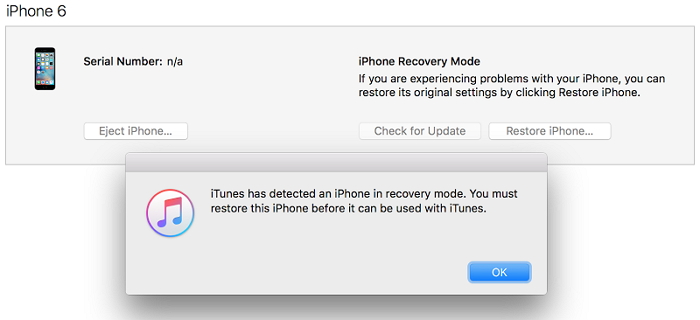
  • Now put your iPhone into Recovery Mode because iTunes will not recognize your iPhone when it is stuck in white screen of death. You can refer to this guide to set your iPhone in recovery mode.
  • iPhone in recovery mode
  • Then iTunes will detect your iPhone in recovery mode. You will be offered with the option to restore your iPhone.
  • Lastly, click on 'OK' and then on 'Restore iPhone' and your device will be restored to factory settings. Once it restarts, you can set up your iPhone like a new one.
restore iPhone with iTunes

How to reset an iPhone to its factory settings


How to reset an iPhone to its factory settings

Apple iPhone X
Perhaps you're gifting your old iPhone to a friend, or maybe you've decided to sell it to the highest bidder before the next one is released. Whatever the case, it's probably a good idea to wipe your data and return the phone to its original settings before you move on to the next one. If your iPhone's been getting sluggish, a factory reset might clear the decks of potential software hiccups that've been holding you back.
Fortunately, resetting an iPhone is about as easy as it gets thanks to Apple's intuitive, easy-to-navigate menu software.Sponsor Ads:
Gihosoft Free iPhone Data Recovery is a professional iPhone Data Recovery software to get back all your lost text message, photo, video, call history, note, contact and more from iPhone/iPad/iPod Touch. It offers a full solution to recover your lost data in different tough situations. Besides recovering data directly from iPhone, iPad and iPod touch, it also allows you to recover data from iCloud and iTunes backup files.
1. Open the Settings app.
2. Select "General."
3. Scroll down to the bottom of the General settings menu.
4. Select "Reset."
5. From here, you can choose "Reset All Settings" or "Erase All Content and Settings."
6. To completely wipe your phone, select "Erase All Content and Settings."
Your iPhone will ask if you're sure (are you?), but once you approve the request, your iPhone is as good as wiped.

How to reset an Android to its factory settings

Samsung Galaxy Note 8
The process of resetting an Android phone is slightly different than it is on iOS, but that's to be expected. After all, not every Android phone features the same basic software and design language across different devices. Thankfully, the actual nuts and bolts of the process—regardless of the Android device in question—is easy as pie.
Like the iPhone, the reset option for an Android phone can be found in the phone's settings app. From there, you'll want to find the phone's general settings submenu. This menu could potentially be labeled "General management," "Basic," or "System," so tap around until you find it.
From here, the process is a breeze: Just select "Reset" (or whatever its equivalent might be) and confirm your actions.

Thursday, July 12, 2018

8 Secret iPhone X Tips and Tricks You Might Not Know About 2018


I’ve been using the iPhone X for a few months now, and the more I do, the more I love it. Cost aside, it is the best iPhone Apple has ever made. Much of that is due to the brilliant display and radical edge-to-edge redesign of the device. That’s not to mention the incredibly accurate Face ID, which completely replaced the fingerprint reader and physical home button. But because the iPhone X is such a departure from iPhones of old, it also means that there are a ton of new tricks to learn–many of which aren’t completely obvious just from holding the device in your hands. Here’s eight of the top secret iPhone X tips and tricks I’ve discovered.

iPhone X Tips: Force Restart Your iPhone X

The lack of a home button means that many of past iPhone’s functions have been remapped to other hardware or software controls on the iPhone X. The ability to force restart the iPhone X is among those. To force restart your iPhone X now you need to press and quickly release the Volume Up button, press and quickly release the Volume Down button, and then press and hold the Side button.

iPhone X Tips: Trigger SOS

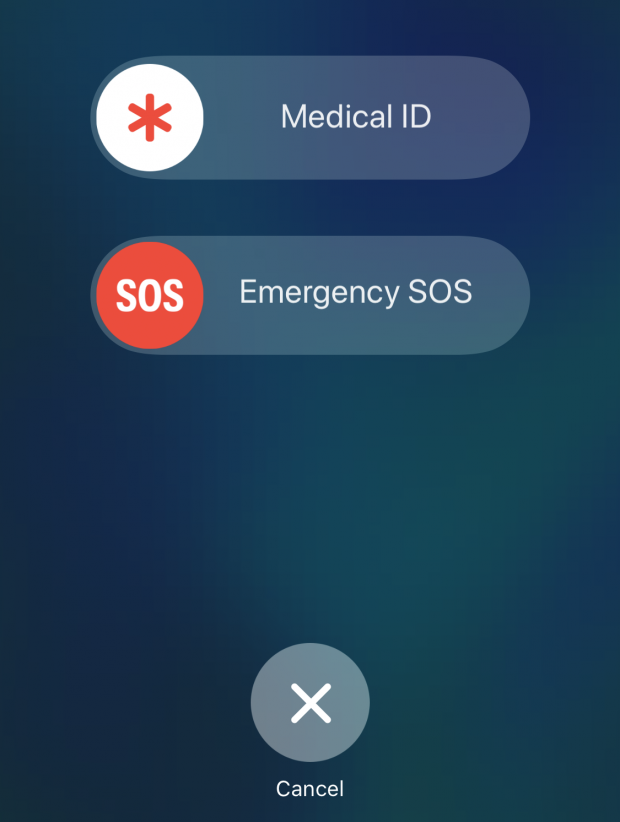
SOS is a mode on the iPhone that allows you to quickly call emergency services. To trigger SOS hold the Side button and either Volume button for six seconds. Alternately you can press the Side button five times in succession to trigger SOS.

iPhone X Tips: Control What Face ID Unlocks

Face ID replaces the way you unlock your iPhone. Now you simply look at the device instead of placing your finger on the now-gone Home button. But Face ID can also be used to make purchases in the App Store and in apps, authenticate Apple Pay payments, and autofill forms in Safari. However, you don’t need to allow Face ID to do all of these things if you don’t want. You can toggle each Face ID feature on or off by going to Settings > Face ID & Passcode.

iPhone X Tips: Always Show Notification Previews

A cool feature of the iPhone X is that notifications are automatically hidden and will only display their content if you are looking at the device. This ability means other people who have access to your phone can’t see the details of the notifications you receive on your lock screen. But you can disable this if you want to. To do so, got to Settings > Notifications > Show Previews and choose Always, When Unlocked, or Never.

iPhone X Tips: Customize The Control Center

Control Center got a major overhaul in iOS 11. Actions are now much easier to implement and have a better layout. But you can also further customize Control Center on your iPhone X if you wish. To do so got to Settings > Control Center > Customize Controls. Here you can add, subtract or rearrange controls in Control Center. For example, if you don’t use the Flashlight a lot, you can remove its button from Control center and replace it with an app you do use a lot–Notes, for example.

iPhone X Tips: Use A One-handed keyboard

The iPhone X has a seriously large screen, which sometimes makes one-handed use a bit hard if your hands are on the smaller size. To combat this, Apple has built-in a one-handed software keyboard. To access it, simply tap the emoji keyboard icon in any app that uses the keyboard and then select the left or right-handed keyboard icon to shift all the keyboard keys to one side.

iPhone X Tips: Bring Back The Home Button

Okay, you can’t obviously really bring back the physical Home button, but there is a way you can kinda of replicate it using software in iOS. To do this go to General > Accessibility > Assistive Touch and toggle it on. You'll now see a virtual Home button on your screen that you can customize to activate shortcuts.

iPhone X Tips: Force Quit Apps

With no Home button it might seem like you can’t force quit apps anymore–but you can. To do so on the iPhone X you need to bring up the app switcher. Do this by swiping up on the home bar from the bottom of any screen. Once the apps appear, swipe to the one you want to force quit and tap and hold on it. Once the minus sign in the red dot appears either tap the dot or simply swipe up on the app to force quit it.

If you accidentally deleted or lost videos on iPhone, first please check on the Recently Deleted folder. Alternatively, you can use the professional tool Gihosoft iPhone Recovery to recover deleted iPhone videos from Camera Roll or some apps.

5 Secrets for clicking the best iPhone X photographs 2018 Guide

5 Secrets for clicking the best iPhone X photographs 2018 Guide

As always Apple again took the hold of the market this year. We all know iPhone is the most gifted phone in the world. The new launches of iPhone 8, 8 plus, and X models have made massive sales and are being known for their amazing camera results. Though both iPhone 8 and 8 plus are loved by people, iPhone X is something next level due to its unique camera features.
iPhone X with face recognition, the missing main home button, and the camera features are making this smartphone way much popular than any other iPhone. Most people are still exploring the camera system of this device. All the pictures being clicked on this phone are exceptional and are being loved by the users! With this phone in hand, you can not only shoot pictures in Portrait mode, you can also expand portrait lighting, and utilize the completely remodeled back camera.

Related:

To help you shoot some really gorgeous pictures with your iPhone X, I have compiled these 5 secrets to take the best looking photos with your amazing phone. To find out these secrets, keep reading:

1: Zooming option in the Dark

I love this upgrade on iPhone X. It has made taking pictures in dark so much easier. Now you have the 2x lens in it, it works in low light. You can use both the lenses, no matter what are the lighting situations; your picture quality won’t be compromised.

2: Brighten any Scene with Flash

Usually, smartphone flashes are very harsh but Apple has introduced a new flash technology named as Slow Sync that shoots very beautiful and soft images by utilizing the phone’s innovative Quad-LED flash. It is suggested that this flash should be used in dim restaurants or after a sunset for best results.

3: Live Photo Effects

When you shoot live photos or a small video, it’s not completely a new feature that iPhone X has included, you will have a set of really nice effects using this superb technology. For example, like the DSLR camera features you can blur your background, generate a continuous Loop, or create a Boomerang which is very popular these days.

4: Portrait Modes

The Apple company made major developments in the portrait mode. The new iPhone X camera features just not have portrait mode with blurred backgrounds, it also has 5 new lighting modes for portraits, which includes natural light, contour light, studio light, stage lights and mono light (for black and white stage like photos). So, If you want to highlight your subjects, the photography level is up for you!If you accidentally deleted or lost videos on iPhone, first please check on the Recently Deleted folder. Alternatively, you can use the professional tool Gihosoft iPhone Recovery to recover deleted iPhone videos from Camera Roll or some apps.

5. Play with Burst Mode

For taking the best pictures, especially when you are traveling utilize the burst mode. You can shoot 10 photos per second with this outstanding burst mode of iPhone X. To utilize this camera feature, just hold the shutter icon for a while in your camera application. Sometimes photography is about shooting a short-lived moment.

6. How can we forget Video Modes?

There are various iPhone video modes that you can enjoy, exclusively when you are shooting a scene where this is some interesting movement or sound.
If you would like to capture something like clouds moving slowly in the sky you must go for the time-lapse mode in your iPhone X. If the scene you want to shoot is a bit fast, for instance, birds flying in the sky or landing fast in the water then you must try slow motion video mode.

Tuesday, July 10, 2018

Top 5 FIFA World Cup Songs in 2018

Top 5 FIFA World Cup Songs in 2018


As we covered above there are a total of 5 different songs for this year's World Cup. You might have only heard one of them, so here's a quick breakdown of each song.
#1 - Live It Up (Official)


The official song for the World Cup, as decided by FIFA, is Live It Up featuring some big names that most people will know. Will Smith, Nicky Jam, Era Istrefi, and Diplo, all contributed to this song.
#2 - Komanda


As the World Cup is hosted by Russia, it's only natural that they'd produce a song in their native tongue. Komanda was created by DJ Smash and has been a huge hit this year.

#3 - Colors


For the most recent World Cups, Coca-Cola has released their own anthems as a marketing tactic and 2018 was no exception. Featuring Jason Derulo and others, Colors is worth listening to!
#4 - Positivo


Positivo is a Spanish song that was released by Spanish company Telemundo that features J Balvin, Michael Brun, and Fernando Lugo.
#5 - United by Love


Sung by Natalia Oreiro, United by Love includes lyrics in English, Russian, and Spanish, which has made it popular across all nations.
Download FIFA World Cup Songs for Free


Each of these songs has the potential to be the best World Cup song of all time. Therefore, you might want to consider making one of them your iPhone's ringtone. Download all of your favourite songs (especially those above) using the MP3 Juices download tool, one of the best free music downloaders on the internet.


If you accidentally deleted or lost videos on iPhone, first please check on the Recently Deleted folder. Alternatively, you can use the professional tool Gihosoft iPhone Recovery to recover deleted iPhone videos from Camera Roll or some apps.

iOS 13.2 and iPadOS 13.2 Beta 2: What’s New

Apple today released the second developer beta of iOS 13.2 and iPadOS 13.2 . While the highlight of the first developer beta of iOS 13.2 int...